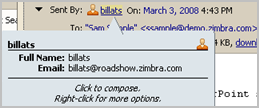
Contacts can be quickly added to your address books when you select an address on an email message and right-click to add the email address to your address book. Also, if you checked the Address Book preference to Add new contacts to "Email Contacts", when you send an email to a new address, the address is automatically added to your Emailed Contacts list.
You can quickly add email addresses to your address books. You can add email addresses from mail header's From:, To:, Cc:, or Bcc: lines. You can do this from any message or conversation view.
When you pass your mouse cursor over an address, a tool tips displays the full email address associated with that name. If the name is already in an address book, both contact information is displayed. If the name is not in one of your address books, only the email address is displayed.
Right-click on the address, select Add To Contacts to add the name to your contacts list. The contacts form opens and displays the name
You can add additional contact information and select which address book to save the contact information.
An Emailed Contacts address book is automatically created in your mailbox. In your Preferences, Address Book tab, If you checked the setting Add new contacts to "Emailed Contacts", new contact information is automatically added to this address book.