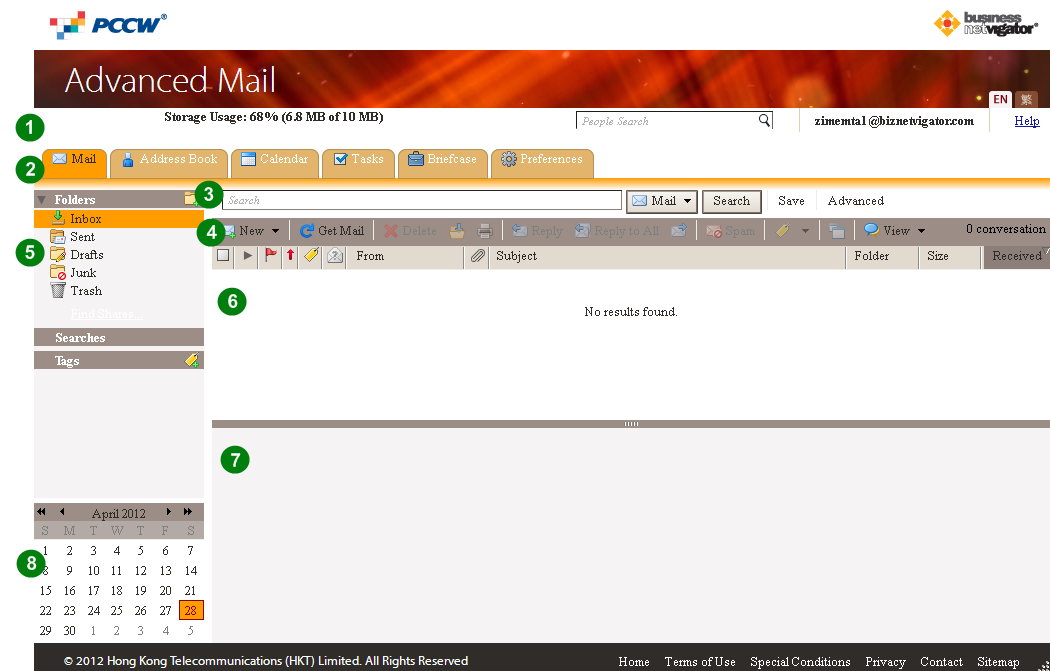
When you log into the Advanced Email Web Client , you see a full screen view similar to the one shown below.
The Advanced Email Web Client page includes the following areas:
Header. This area includes People Search to search your directory, your name, and the Help links.
Application Tabs. The applications that you can access are listed in the tabs on this row.
Search Bar. The Search, Advanced search are displayed in this area. You can also save searches from here.
Toolbar. Shows actions available for the application you are currently using. In this example, the Mail application toolbar is displayed.
Overview Pane. Displays your Folders, including the system folders Inbox, Sent, Drafts, Junk, and Trash, as well as any custom folders you may have created, Searches you may have saved, and Tags you created.
Content Pane. The content of this area changes depending on what application is in use. In the Inbox view, it displays all messages or conversations in your Inbox.
Reading Pane. The Reading Pane is used to preview messages. You can change your view to a three-pane view that shows the Reading Pane on the right or you can turn off the Reading Pane completely from View, on the Mail toolbar
A mini-calendar can be displayed below the Overview pane. Displaying the mini-calendar is optional and can be enabled in Preferences>Calendar.